javascript
43 lines · 8 steps
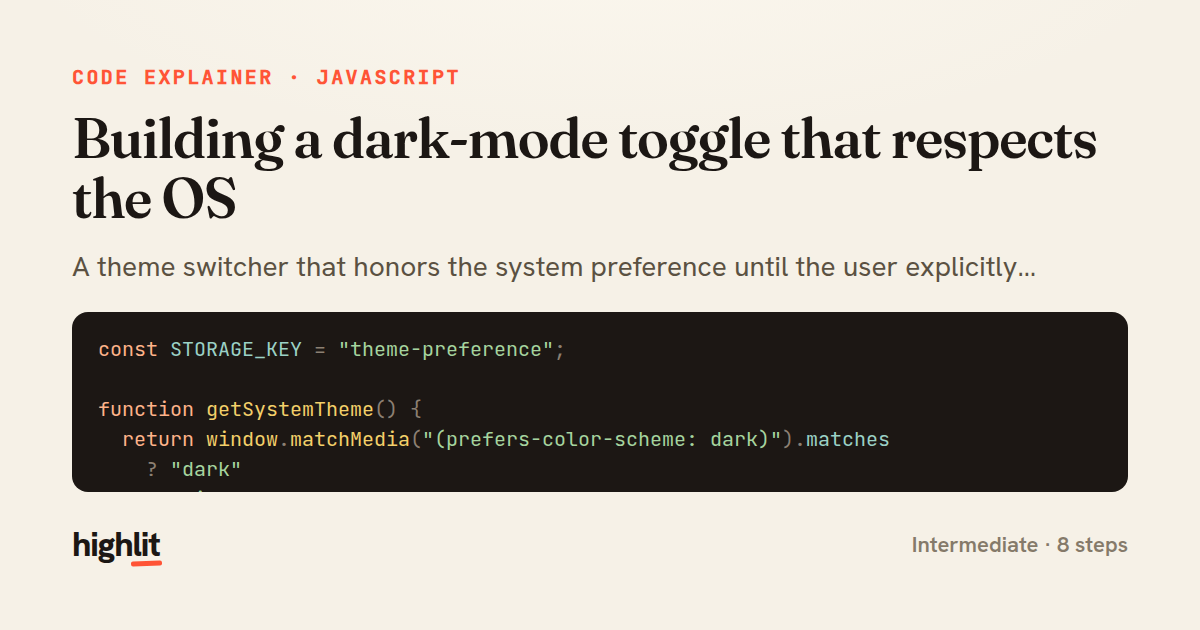
Building a dark-mode toggle that respects the OS
A theme switcher that honors the system preference until the user explicitly overrides it, then remembers that choice.
Explained by
highlit
1const STORAGE_KEY = "theme-preference";
2
3function getSystemTheme() {
4 return window.matchMedia("(prefers-color-scheme: dark)").matches
5 ? "dark"
6 : "light";
7}
8
9function getStoredTheme() {
10 return localStorage.getItem(STORAGE_KEY);
11}
12
13function applyTheme(theme) {
14 document.documentElement.dataset.theme = theme;
15 const toggle = document.querySelector("[data-theme-toggle]");
16 if (toggle) {
17 toggle.setAttribute("aria-pressed", String(theme === "dark"));
18 }
19}
20
21function resolveTheme() {
22 return getStoredTheme() ?? getSystemTheme();
23}
24
25function initThemeToggle() {
26 applyTheme(resolveTheme());
27
28 const systemQuery = window.matchMedia("(prefers-color-scheme: dark)");
29 systemQuery.addEventListener("change", (event) => {
30 if (getStoredTheme() === null) {
31 applyTheme(event.matches ? "dark" : "light");
32 }
33 });
34
35 const toggle = document.querySelector("[data-theme-toggle]");
36 toggle?.addEventListener("click", () => {
37 const next = resolveTheme() === "dark" ? "light" : "dark";
38 localStorage.setItem(STORAGE_KEY, next);
39 applyTheme(next);
40 });
41}
42
43document.addEventListener("DOMContentLoaded", initThemeToggle);
01 / 01
STEP 01
‹ swipe to step through ›
Walkthrough
Space play
←→ step
click any line
Three takeaways
- 1Fall back to the OS preference only until the user makes an explicit choice, then persist it.
- 2Nullish coalescing cleanly expresses 'stored value wins, otherwise derive a default'.
- 3Keeping DOM state and ARIA attributes in one apply function keeps visuals and accessibility in sync.
Related explainers
javascript
function evaluate(expression) {
  const tokens = tokenize(expression);
  let pos = 0;
Building a recursive descent calculator
parsing
recursion
operator-precedence
Intermediate
8 steps
javascript
import { useState, useEffect, useCallback, useRef } from 'react';

const cache = new Map();
const inflight = new Map();
Building a stale-while-revalidate hook in React
caching
request-deduplication
custom-hooks
Advanced
10 steps
typescript
import { useEffect, useState } from "react";

interface Section {
  id: string;
Building a scroll-spy hook in React
custom-hooks
intersectionobserver
dom-observation
Intermediate
8 steps
javascript
import { useEffect, useRef, useState } from 'react';

export function useDelayedFlag(active, delay = 300) {
  const [visible, setVisible] = useState(false);
Delaying a loading spinner with a React hook
custom-hooks
debouncing
cleanup
Intermediate
8 steps
javascript
const SWIPE_THRESHOLD = 80;
const MAX_TRANSLATE = 120;

export function attachSwipeToDismiss(element, onDismiss) {
Building a swipe-to-dismiss gesture in JS
touch-events
gesture-detection
dom-manipulation
Intermediate
10 steps
javascript
const { pool } = require('./db');

function withTransaction() {
  return async (req, res, next) => {
A per-request transaction middleware in Express
middleware
database-transactions
connection-pooling
Advanced
7 steps
Share this explainer
Here's the card — post it anywhere.
Made with highlit — turn any snippet into a walkthrough like this in about a minute.
Explain your code
Embed this explainer
Drop the interactive walkthrough into a blog or docs. Views never cost a credit.
<iframe src="https://highlit.co/explainers/building-a-dark-mode-toggle-that-respects-the-os-explained-javascript-89e7/embed?autoplay=1" width="100%" height="520" loading="lazy" style="border:0"></iframe>
Autoplay is on by default — add ?autoplay=0 to start paused.